
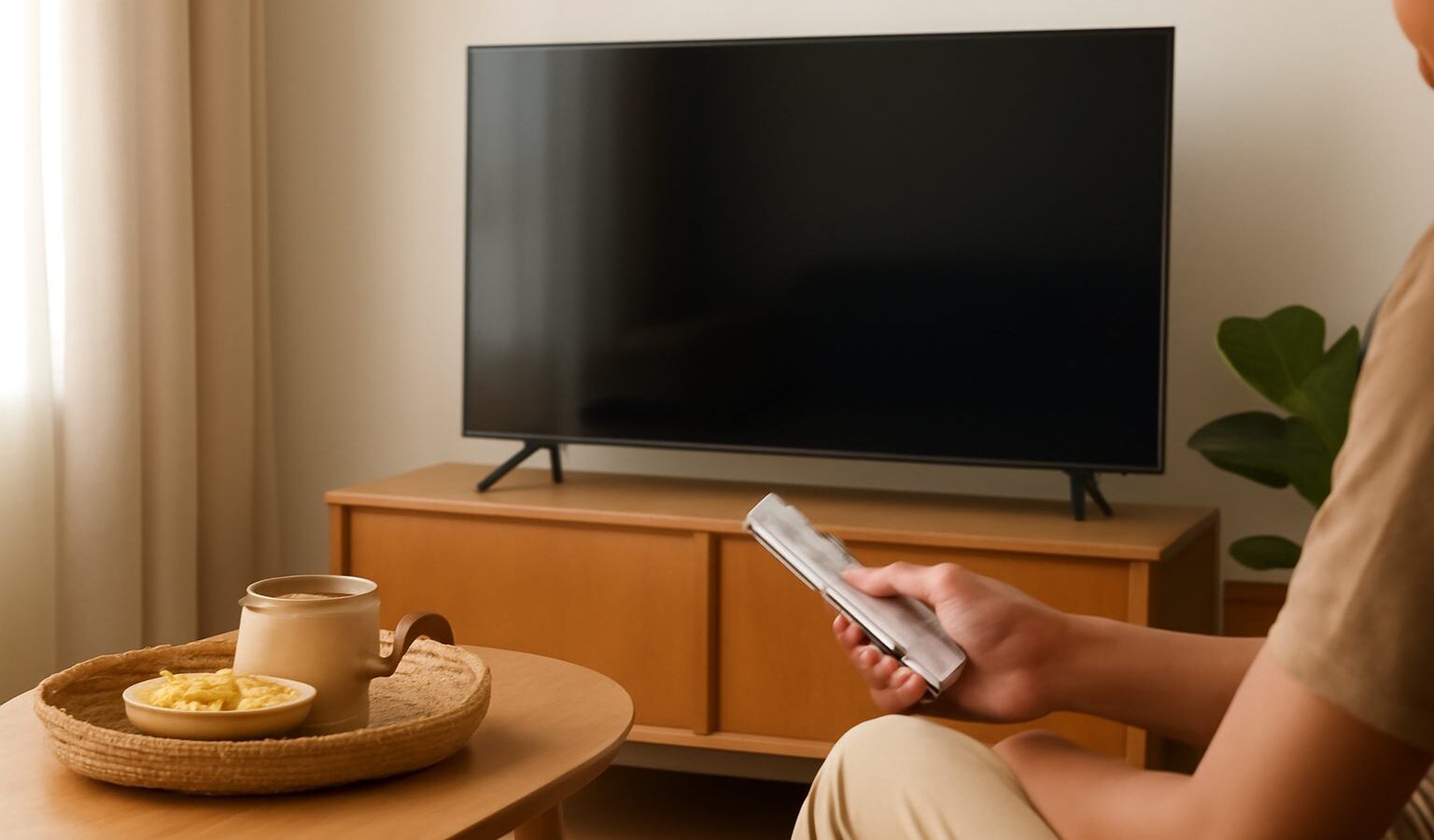
Unboxing a new smart TV in Singapore is exciting, but the first hour can feel fiddly, with cables, accounts, updates, and a remote full of unfamiliar buttons. A smart TV is simply a television with the internet and apps built in, so you can stream shows without a separate box. This guide takes you calmly from mounting and cables to picture, sound, apps, and, importantly, the privacy settings that many people never touch. A little care at setup means better viewing, fewer headaches, and more control over what your TV knows about you.
Setting Up Your New Smart TV Step by Step
Give yourself a quiet half hour and work through the setup in order. Rushing usually means redoing it later.
Place or mount it well. Sit the TV at a comfortable eye level for your sofa, and keep some space around the back for airflow, as electronics like to stay cool in our warm climate. If you are wall-mounting in an HDB flat, make sure the bracket suits your wall and the TV’s weight, and plan where the cables will run before you drill.
Connect the essentials. Plug in power, then connect any devices to the HDMI ports on the back, for example a soundbar, a game console, or a streaming stick. HDMI is the single cable that carries both picture and sound. Label your ports mentally so you know which input is which.
Get online. Connect the TV to your home wifi, or use a network cable for the steadiest connection if the router is nearby. Streaming in high quality needs a reliable connection, and if yours struggles, our guide to fix slow home wifi can help.
Sign in and update. You will be asked to sign in with the TV maker’s account and to accept some terms. Let the TV install its software update straight away, as this fixes bugs and improves security. Then sign in to the streaming apps you actually use.
Do a quick tune-up. Scan for free-to-air channels if you use an aerial, arrange your apps so favourites are easy to reach, and pair the remote. Many new TVs also support voice remotes, which make searching far easier than typing with a directional pad.
Getting the Best Picture and Sound
Out of the box, many TVs are set to a bright, punchy “shop floor” mode that looks harsh at home. A few tweaks make a big difference.
Choose a sensible picture mode. Modes with names like “Standard”, “Movie”, or “Cinema” are usually more natural and easier on the eyes than “Vivid” or “Dynamic”. Try them on a show you know well and keep the one that looks right in your living room’s lighting.
Turn off effects you dislike. Some TVs apply heavy motion smoothing, which can make films look oddly like a video recording. If that bothers you, look for a motion setting and reduce or switch it off.
Fix the sound. Flat panels have thin bodies, so built-in speakers can sound weak. If dialogue is hard to follow, try a clear-voice or speech setting, and consider a soundbar for a real upgrade. Our guide to get better TV picture and sound goes deeper, and if you are still shopping, see buying a TV.
Match your sources. Streaming apps, a console, and a Blu-ray player may each need their own quick settings check. Enabling the higher-quality picture options on each source helps you get what you paid for.
Protecting Your Privacy on a Smart TV
Here is the part many people miss. A smart TV is an internet-connected device that can, by default, track a great deal about what you watch, sometimes even scanning what appears on screen to build a profile for advertising. It is worth reviewing the settings so you decide what to share.
Review the privacy and data settings. Look in the settings menu for anything about “viewing information”, “content recognition”, “usage data”, or personalised ads, and turn off what you are not comfortable with. Reading and adjusting these during setup, rather than accepting every default, puts you back in control.
Limit ad tracking. Many TVs let you reset or block an advertising identifier and switch off targeted ads. Turning these off will not stop the TV working, it simply reduces how much is used to profile you.
Be thoughtful with voice and cameras. If your TV has a voice remote or a built-in microphone, understand when it is listening, and disable voice features if you would rather not use them. The same goes for any built-in camera.
Secure the basics. Keep the TV’s software updated for security, use a strong password on the accounts linked to it, and if children use the set, set up the parental controls. Treat the TV like any other device on your home network, since a poorly secured smart device can be a weak spot.
Sign out on shared or second-hand sets. If you sell or give away a smart TV, reset it to factory settings and sign out of every app so the next owner cannot reach your accounts.
A Simple Finish
Set your TV up patiently, pick a natural picture mode, sort the sound, and add only the apps you truly use. Then spend five minutes in the privacy menu turning off the tracking you do not want. That last step is quietly the most valuable, because a smart TV can be a wonderful centrepiece for the living room while still respecting your privacy, once you have told it where the line is.