
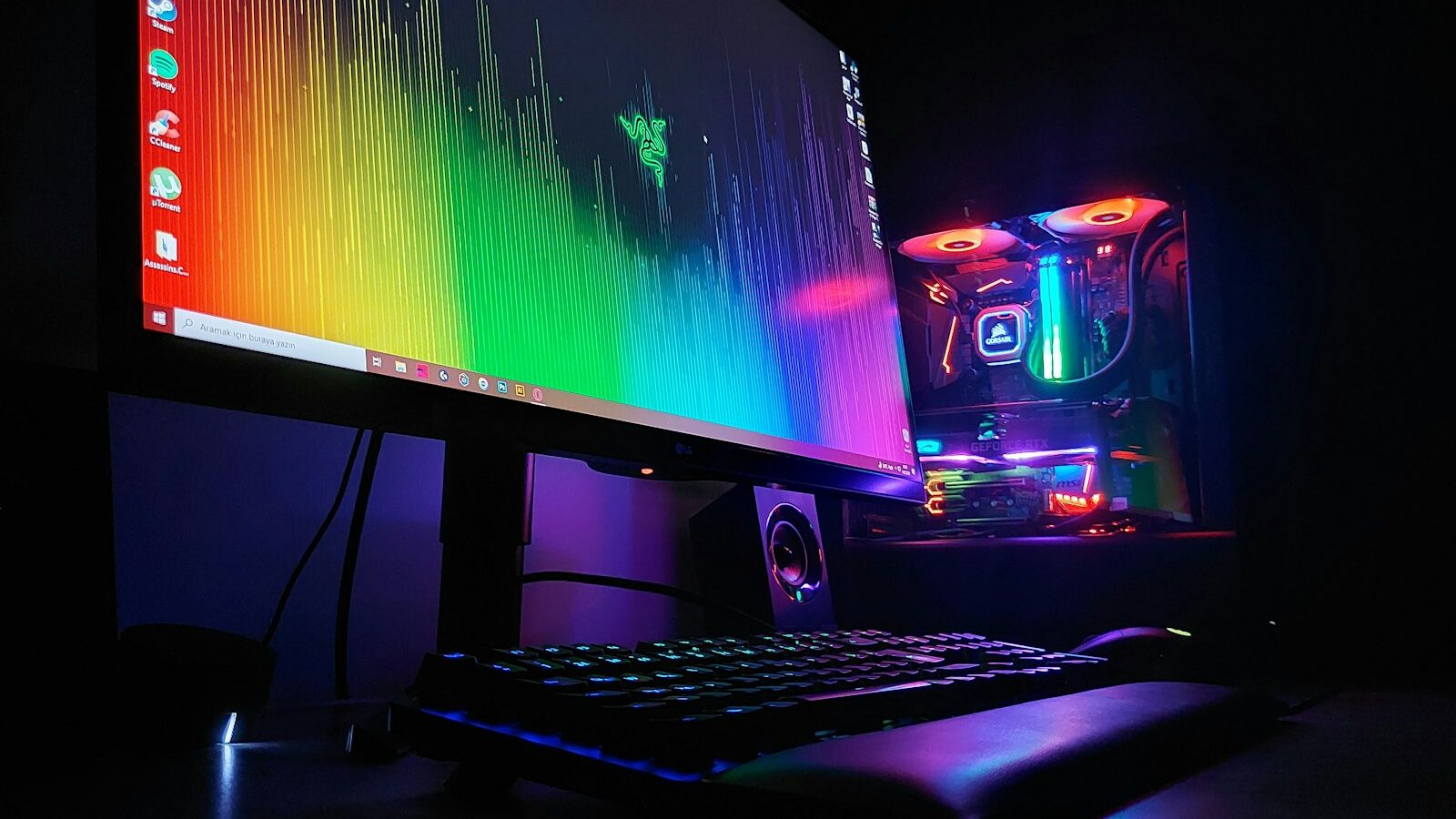
Knowing how to upgrade your gaming PC well is about spending on the one part that is actually holding you back, not the part that is easiest to swap. A smart upgrade can add years to a machine for a fraction of the cost of a new build. This guide shows you how to find the real bottleneck, decide which component to change first, and avoid the common traps that lead to wasted money.

Start by finding the bottleneck
Before buying anything, work out what is limiting you. Upgrading the wrong part gives little or no improvement, so diagnosis comes first. Use a monitoring tool to watch component usage while you play a demanding game.
- If your graphics card sits at full usage while frame rates disappoint, the GPU is your limit.
- If your processor is maxed out while the GPU has spare capacity, the CPU is holding you back.
- If your memory fills up and the system stutters when you multitask, you need more RAM.
- If load times are long and stutters appear as new areas stream in, storage is the culprit.
Let the evidence, not guesswork, decide where your money goes. The component running flat out is usually the one to upgrade.
Which upgrade gives the most performance
For pure gaming, upgrades are not equal in impact. This ranking holds true for most systems.
| Upgrade | Impact on gaming | Difficulty | When to prioritise |
|---|---|---|---|
| Graphics card | Highest | Moderate | Low frame rates with a maxed GPU |
| Add or faster RAM | Moderate | Easy | Stutter when multitasking, only 8GB fitted |
| SSD upgrade | Moderate on load times | Easy | Long loads, still on a hard drive |
| Processor | Situational | Harder | GPU held back by a maxed CPU |
The graphics card almost always delivers the biggest frame-rate gain, which is why it tops most upgrade lists. Memory and storage upgrades are cheaper and easier, and they transform a squeezed or slow-loading system even if they do not raise peak frame rates.
The easy wins first
Some upgrades are cheap, quick and low-risk, so tackle these before anything major.
Add an SSD
If you are still gaming from a hard drive, moving your operating system and games to a solid-state drive is the most dramatic quality-of-life improvement available. Loads shorten, stutter fades and the whole machine feels new.
Top up your RAM
Going from 8GB to 16GB removes multitasking stutter for very little outlay. Fit memory in a matched pair so it runs in dual channel, and check that the new sticks are compatible with your motherboard.
Clean and re-cool
Before spending on parts, clear out dust, replace ageing thermal paste and confirm your fans work. In Singapore’s climate a clogged, hot system throttles and feels slow. A clean-out sometimes recovers performance for free.
Update your software
Not every gain requires new hardware. Fresh graphics drivers, a tidy operating system and up to date firmware can smooth out stutters and recover lost frames at no cost. It is worth ruling these out before assuming a part needs replacing, since a driver bug or a background app hogging resources can masquerade as an ageing component. Reboot, update, and retest before you reach for your wallet.
Planning a major upgrade
When the graphics card or processor is the answer, a little planning prevents nasty surprises.
Check the power supply
A more powerful graphics card may need more power and specific connectors. Confirm your power supply has the capacity and the right cables before buying a card, since an underpowered supply causes crashes and instability.
Check physical fit and airflow
Modern graphics cards are large. Measure your case and confirm the card fits with room for airflow. A powerful part starved of cooling simply throttles.
Mind CPU and motherboard compatibility
A new processor must match the motherboard’s socket and be supported by its firmware. Sometimes a CPU upgrade also means a new motherboard and memory, which changes the maths considerably. Factor that in before deciding.
When to upgrade versus rebuild
There comes a point where upgrading stops making sense. If bringing a system up to date would mean a new processor, motherboard, memory and graphics card all at once, you are effectively building a new machine around an old case. In that situation a fresh build, planned properly, is often the better value and the cleaner path. Our first-build guide is a useful reference when you reach that stage.
A good rule of thumb: upgrade when a single well-chosen part unlocks a big gain, and consider rebuilding when the whole platform is holding you back.
There is also value in the parts you keep. A good power supply, a roomy case and a quality cooler often outlast several generations of components, so a machine built with those in mind is far easier to upgrade later. If you are buying now with future upgrades in mind, spending a little more on these long-lived parts pays off every time you swap a graphics card or processor down the line.
A sensible upgrade order
- Diagnose the bottleneck with a monitoring tool before spending a cent.
- Grab the easy wins first: an SSD and enough RAM, plus a proper clean-out.
- Upgrade the graphics card if frame rates are your problem and the GPU is maxed.
- Consider the processor only if it is clearly bottlenecking a capable GPU.
- Verify power, fit and compatibility before committing to any major part.
Following this order gets you the most performance for the least money and spares you the frustration of an upgrade that changes nothing.
A confident closing
Upgrading a gaming PC is deeply satisfying when done with intent: you spend a little, target the real limit, and feel the difference immediately. Diagnose before you buy, take the easy wins first, and plan the big upgrades around power and compatibility. Do that and your machine will stay competitive for years, keeping you in the game without a full rebuild.
Explore more: Building Your First Gaming PC · Understanding GPUs and Graphics Cards · Understanding RAM and Storage for Gaming
Frequently Asked Questions
How do I know whether my PC needs an upgrade or a full rebuild? Upgrade when one well-chosen part unlocks a big gain. If bringing the system up to date means a new processor, motherboard, memory and graphics card all at once, you are effectively building a new machine, and a planned fresh build is often better value.
Is it safe to upgrade a PC myself? Swapping RAM, drives or a graphics card is manageable for many people with care, patience and the manuals. Power off, unplug and discharge static before touching parts. If anything feels beyond your comfort, ask a reputable technician.
How often should I clean dust out of my gaming PC? There is no fixed schedule, but dust builds up and in our climate a clogged system throttles and feels slow. Check it regularly, clear dust, confirm fans spin properly and replace ageing thermal paste when needed.
Can software tweaks fix stutter before I spend on parts? Sometimes. Fresh graphics drivers, a tidy operating system, updated firmware and closing background apps can recover lost frames at no cost. Reboot, update and retest before you assume a component is ageing.
Will a new graphics card fit and run in my current case and power supply? Not always. Check the card’s physical size against your case, its recommended power supply capacity and the connectors it needs. An underpowered supply causes crashes, and a card starved of airflow will throttle.
Further reading: Power Supplies and Cooling for Gaming PCs · When and How to Replace Thermal Paste on a Gaming PC · Prebuilt vs Custom Gaming PC in Singapore: Which Should You Buy?