
Gaming PC overheating in Singapore is a real problem, not just a forum complaint. Most PC cooling advice is written for places where room temperature sits comfortably in the low twenties. Here, a bedroom without the air-conditioning on can sit around 30 degrees Celsius or higher on a warm afternoon, and humidity is high all year. Your fans are pushing warm air over hot components, so they have less headroom to work with.
This guide focuses on what you can do when your rig lives in a non-air-conditioned room, or when you only switch the aircon on at night. It covers airflow, dust, humidity and the room itself. If you are still choosing parts, our guide to building your first gaming PC is a good companion.
Why Singapore Rooms Are Hard on Gaming PCs
A PC cooler can only bring components down towards the temperature of the air around it. The cooler the intake air, the cooler your CPU and GPU can run. In a warm room, everything starts from a higher baseline.
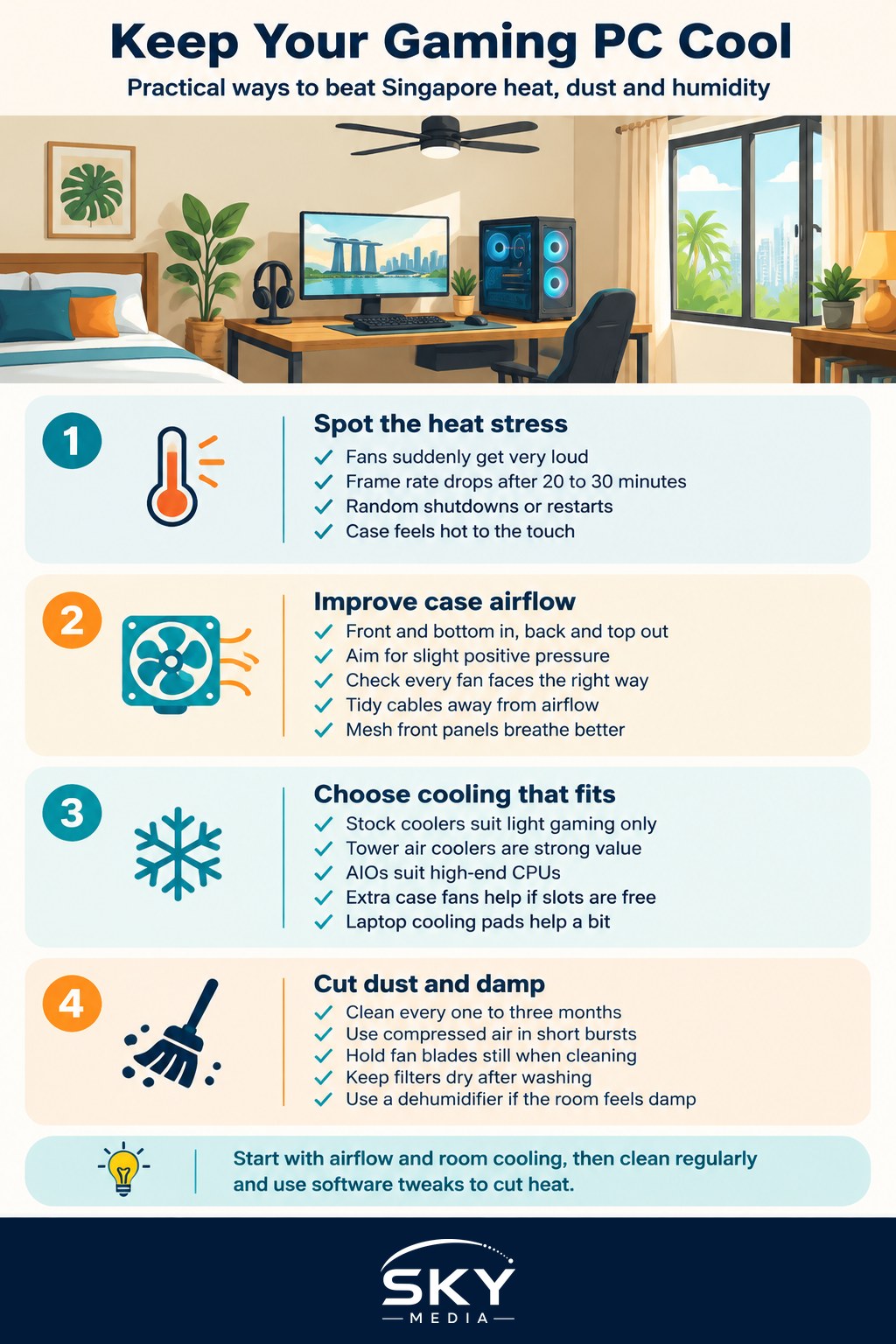
Common signs your rig is struggling:
- Fans ramping up loudly within minutes of starting a game.
- Frame rate drops after 20 to 30 minutes of play, a sign of thermal throttling, where the CPU or GPU slows itself down to stay within safe limits.
- Random shutdowns or restarts under heavy load.
- The case feeling hot to the touch, especially the top or side panel.
Install a free monitoring tool from a reputable source to check your CPU and GPU temperatures under load. Each chip maker publishes its own maximum safe temperatures, so check the specification for your exact model rather than relying on a general number.
Fix Airflow Inside the Case First
Good airflow is the cheapest and most effective improvement.
- Front and bottom in, back and top out. Cool air should enter at the front or bottom and hot air should leave at the rear and top, since hot air naturally rises.
- Aim for balanced or slightly positive pressure. Slightly more intake than exhaust means air leaves through the gaps, which helps keep dust from being sucked in through unfiltered openings.
- Check fan direction. Fans usually have small arrows on the frame showing airflow direction. A single fan facing the wrong way can undo your whole setup.
- Tidy the cables. Route cables behind the motherboard tray so they do not block the path between intake fans and the GPU.
- Mesh front panels beat solid glass. Cases with a closed glass or solid front panel can choke intake. If yours does, consider a case with a mesh front at your next upgrade.
If you are already thinking about new parts, our gaming PC upgrade guide explains which components give the biggest return.
Choosing Coolers and Fans for a Hot Climate
| Option | What it does | Good for | Watch out for |
|---|---|---|---|
| Stock CPU cooler | Basic heatsink and fan bundled with some CPUs | Light gaming, budget builds | Can run loud and hot in a warm room |
| Tower air cooler | Large heatsink with one or two fans | Most gamers, very reliable | Check it fits your case height and RAM |
| AIO liquid cooler | Pump and radiator move heat to case fans | High-end CPUs, cleaner look | Pump is a moving part that can fail, cost is higher |
| Extra case fans | More air through the case | Almost any build with free fan slots | Noise, and unfiltered intakes pull in dust |
| Laptop cooling pad | Fans under a gaming laptop | Gaming laptops on desks | Helps modestly, does not replace cleaning |
A good tower air cooler is often the best value choice in Singapore. It has no pump to fail and handles warm conditions well. Liquid coolers can be excellent, but remember the radiator still dumps heat into the same warm room air.
For graphics cards, you cannot easily swap the cooler, so the case airflow matters even more. Leaving space below the GPU and adding a bottom intake fan, if your case supports one, can help noticeably.
Dust: The Silent Temperature Killer
Dust builds up faster than you think, especially in flats with windows open to the corridor or main road. A thin layer on heatsink fins acts like a blanket.
A simple cleaning routine:
- Shut down and unplug the PC, then press the power button to discharge leftover power.
- Take it to a well-ventilated spot, ideally outdoors or near an open window.
- Use compressed air in short bursts to blow dust out of heatsinks, fans and filters. Hold fan blades still while you do this so they do not over-spin.
- Rinse washable dust filters with water and let them dry completely before refitting.
- Avoid household vacuums directly on components, as they can create static.
Every one to three months is a reasonable interval, depending on how dusty your room is. Placing the PC on a desk rather than the floor also reduces the amount of dust and pet hair it pulls in.
Humidity, Condensation and Your Hardware
Singapore’s humidity is less of a threat to a running PC than heat, because a working computer is warmer than the air around it. But humidity still matters:
- Corrosion over time: connectors and exposed metal can tarnish in persistently damp conditions, particularly if the PC is left off for long periods.
- Condensation risk: be careful moving a cold PC or laptop from a chilly air-conditioned room into a hot, humid space and switching it on immediately. Let it sit for a while to reach room temperature first.
- Mould on peripherals: keyboards, headsets and controllers stored in closed cupboards can develop mould. Store them in a ventilated space.
- Dehumidifiers help: if your room feels damp, a dehumidifier can protect electronics and also makes the room more comfortable.
Never point an aircon vent directly at an open case, and never run a PC with water near it.
Cooling the Room Without Running Aircon All Day
Your PC’s cooling is only as good as the air in your room. Practical ways to lower the starting temperature:
- Position matters. Keep the PC out of direct sunlight and away from west-facing windows that heat up in the afternoon.
- Give it breathing room. Leave at least a hand’s width between the case and walls, and never box it into a closed cabinet.
- Use a standing or ceiling fan to keep air moving around the desk, and open windows to cross-ventilate when the outside air is cooler.
- Pull out hot air. A window-mounted exhaust fan can stop hot air from pooling in a small room.
- Game at cooler times. Late evenings and early mornings are noticeably more forgiving than mid-afternoon.
Our guide to keeping your home cool naturally has more ideas such as blinds, ventilation and reflective window film.
Software Tweaks That Lower Heat
- Cap your frame rate to your monitor’s refresh rate. Rendering frames you cannot see only generates heat.
- Turn on V-Sync or adaptive sync to reduce unnecessary GPU work.
- Set a custom fan curve in your motherboard or GPU software so fans ramp earlier, before temperatures spike.
- Consider undervolting your GPU or CPU with manufacturer tools. It can reduce heat and noise with little or no performance loss, but read the guide for your specific hardware first, as settings vary between chips.
- Close background apps that keep the CPU busy while you game.
Thermal paste ages over several years. If your PC is old and temperatures have crept up despite cleaning, a repaste can help, but if you are not confident, a reputable PC repair shop can do it for you.
Keep the air flowing, the dust down and the room as cool as you reasonably can, and your rig will run faster, quieter and longer in Singapore’s tropical heat.
Further reading: When and How to Replace Thermal Paste on a Gaming PC · Choosing a Gaming Mouse Pad: Speed, Control, Size and Humidity · How Much Electricity Does a Gaming PC Use in Singapore? · How to Clean and Maintain Your Gaming Gear