

Losing photos hurts in a way few other things do. A dropped phone, a hard drive that suddenly clicks and dies, a bag snatched at a hawker centre, and years of memories can vanish in seconds. The good news is that backing up photos to cloud storage is one of the easiest habits you can build, and once it is set up it mostly runs on its own. This guide walks you through a calm, practical approach that suits everyday life in Singapore, whether you shoot on a phone or a proper camera.
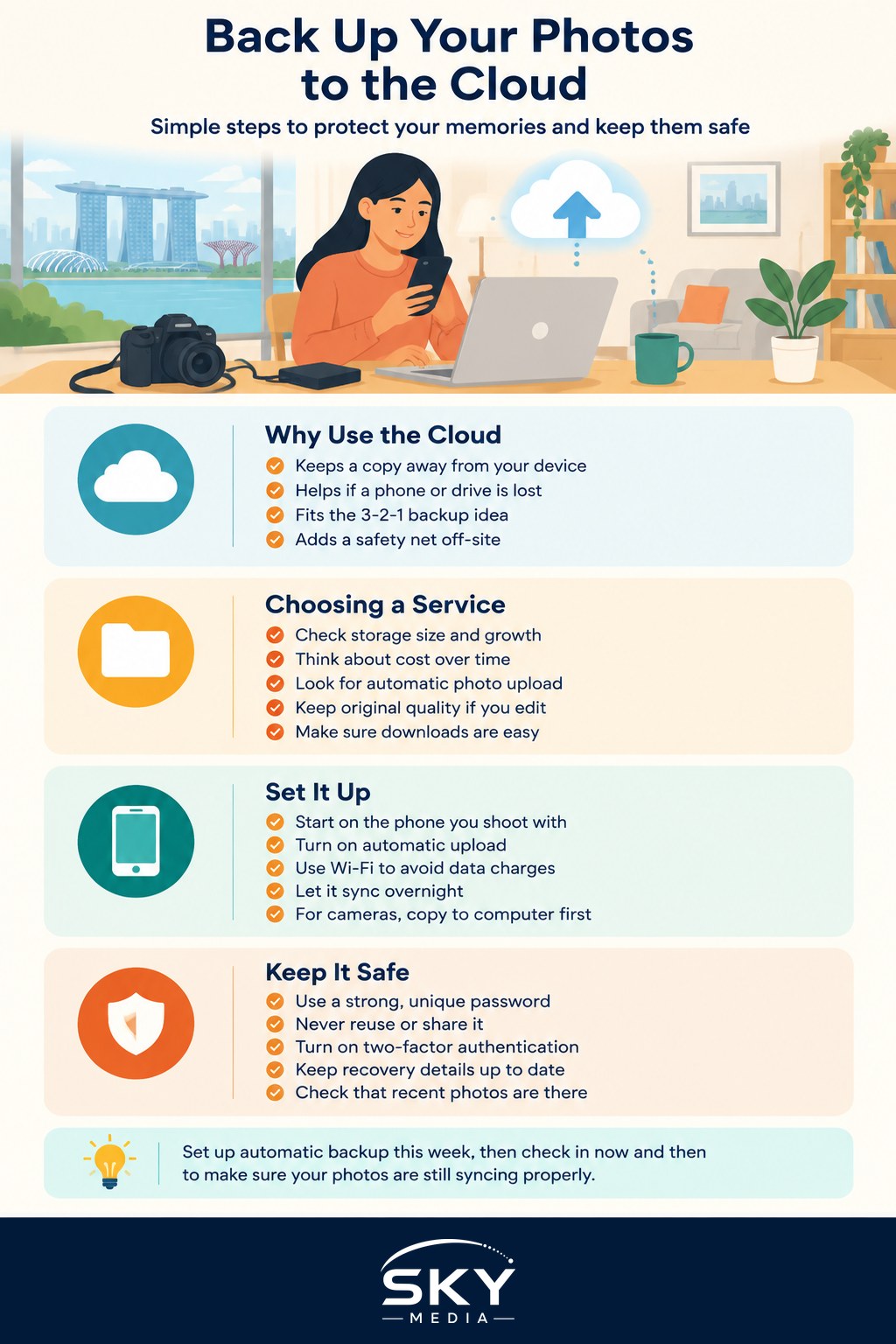
Why the Cloud Is Worth It
A backup is only useful if it lives somewhere separate from the original. If your photos sit only on your phone, then losing the phone loses everything. If they sit only on one hard drive at home, then a theft, a flood, or plain old drive failure takes them all. Cloud storage keeps a copy on servers far away from your bedroom, so a single accident cannot wipe out both the original and the backup at the same time.
A helpful way to think about it is the 3-2-1 idea: keep three copies of anything precious, on two different types of storage, with at least one copy off-site. The cloud is the easiest way to cover that off-site copy without renting a locker somewhere. Your phone or laptop is copy one, an external drive at home is copy two, and the cloud is your safety net.
Choosing Cloud Storage
There are many general options, from the built-in photo services that come with your phone to standalone cloud drives and backup subscriptions aimed at photographers. Rather than chase whichever brand is trending, look at a few plain factors and check the current plans and prices yourself, since these change often.
- Storage size: count how many gigabytes your library already uses, then leave room to grow. RAW files and 4K video eat space quickly.
- Cost over time: cloud storage is usually a monthly or yearly fee. Work out what you are comfortable paying every year, not just the first cheap month.
- Ease of automatic upload: the best backup is the one you never have to think about. Look for an app that uploads new photos on its own.
- Original quality: some free tiers compress your images. If you care about print or editing later, choose an option that keeps full resolution.
- Getting your files out: make sure you can download everything easily if you ever want to switch services.
If you already organise your library on a computer, our guide to organising and backing up your photos pairs well with this one and helps you decide what actually needs the cloud.
Setting Up Automatic Backup
Start on the device where most of your photos are born, usually your phone. Install the cloud app, sign in, and turn on automatic photo upload. On a decent home connection your library will sync over the next few hours or days. To avoid surprise mobile data charges, set the app to upload only on Wi-Fi, and let it run overnight while your phone charges.
For camera shooters, the flow has one extra step. Copy your memory card to your computer first, sort the keepers, then let your cloud app or drive folder sync that folder upward. If you shoot a lot, our notes on how to cull and organise your photos will keep your upload lean so you are not paying to store hundreds of near-identical frames.
Keeping Your Account Safe
A backup is only as safe as the account holding it. Protect it properly.
- Use a strong, unique password for your cloud account, and never reuse it on other sites. Never share your account password with anyone, and be wary of messages asking you to “verify” your login, which are often scams.
- Turn on two-factor authentication so a stolen password alone cannot open your account.
- Keep your recovery email and phone number up to date, so you can get back in if you are locked out.
- Every few months, open the app and confirm recent photos are actually there. A backup you never check is a backup you only assume is working.
A Simple Weekly Rhythm
You do not need a complicated system. A light routine keeps everything current without eating your weekend. Once a week, plug in your phone, let the cloud finish syncing, and copy new camera shots to your computer folder. Once a month, glance at your storage usage and clear obvious junk like screenshots and blurry test frames. Twice a year, do a quick restore test by downloading a few old photos to make sure the whole chain still works.
Backing up photos to cloud storage is not about being a tech expert. It is about protecting the ordinary moments you will want in ten years. Set it up once this week, let it run quietly in the background, and you can shoot freely knowing a lost phone is an annoyance, not a heartbreak. Your future self will thank you the first time something goes wrong and every photo is still safe.
Frequently Asked Questions
How much cloud storage do I actually need for my photos? Check how many gigabytes your library already uses, then add room to grow. RAW files and 4K video fill space fast, so shooters of those need more. Review your plan once a year instead of overbuying on day one.
Is it safe to store private family photos in the cloud? It is reasonably safe if the account is well protected, but no service is risk-free. Use a strong unique password and two-factor authentication, and think twice about uploading very sensitive images. Read the provider’s privacy terms before you commit.
What happens to my cloud photos if I stop paying? It depends on the provider’s terms, and some limit or delete content after a grace period. Check the policy before relying on one service. Keep a local copy on an external drive so a lapsed plan never costs you your only copy.
Should I delete photos from my phone after they are backed up? Only once you have confirmed they really appear in the cloud, and ideally in a second place too. A sync is not always a backup, as deleting on one device can sometimes delete elsewhere. Check how your service behaves first.
How do I back up a very large photo library for the first time? Expect it to take a while, so start on a stable Wi-Fi connection and let it run overnight with the device charging. Cull obvious junk first to save space. Upload in stages if the app struggles.
Further reading: How to Convert HEIC Photos to JPG on iPhone, Mac and Windows · How to Protect Your Photos From Online Theft · How to Make a Photo Book That Tells a Story